Day 1 - Portal orientation and navigation
Read the lesson, work through the screenshots, complete the assignment, and then use the answer key as a self-check.
Learning goals
By the end of Day 1, you should be able to:
- explain the purpose of the main Microsoft 365 admin portals
- identify where you would start for a user, license, mail, Teams, or SharePoint problem
- recognize the difference between read-only investigation and making a change
- build the habit of documenting where you found information
Why this matters
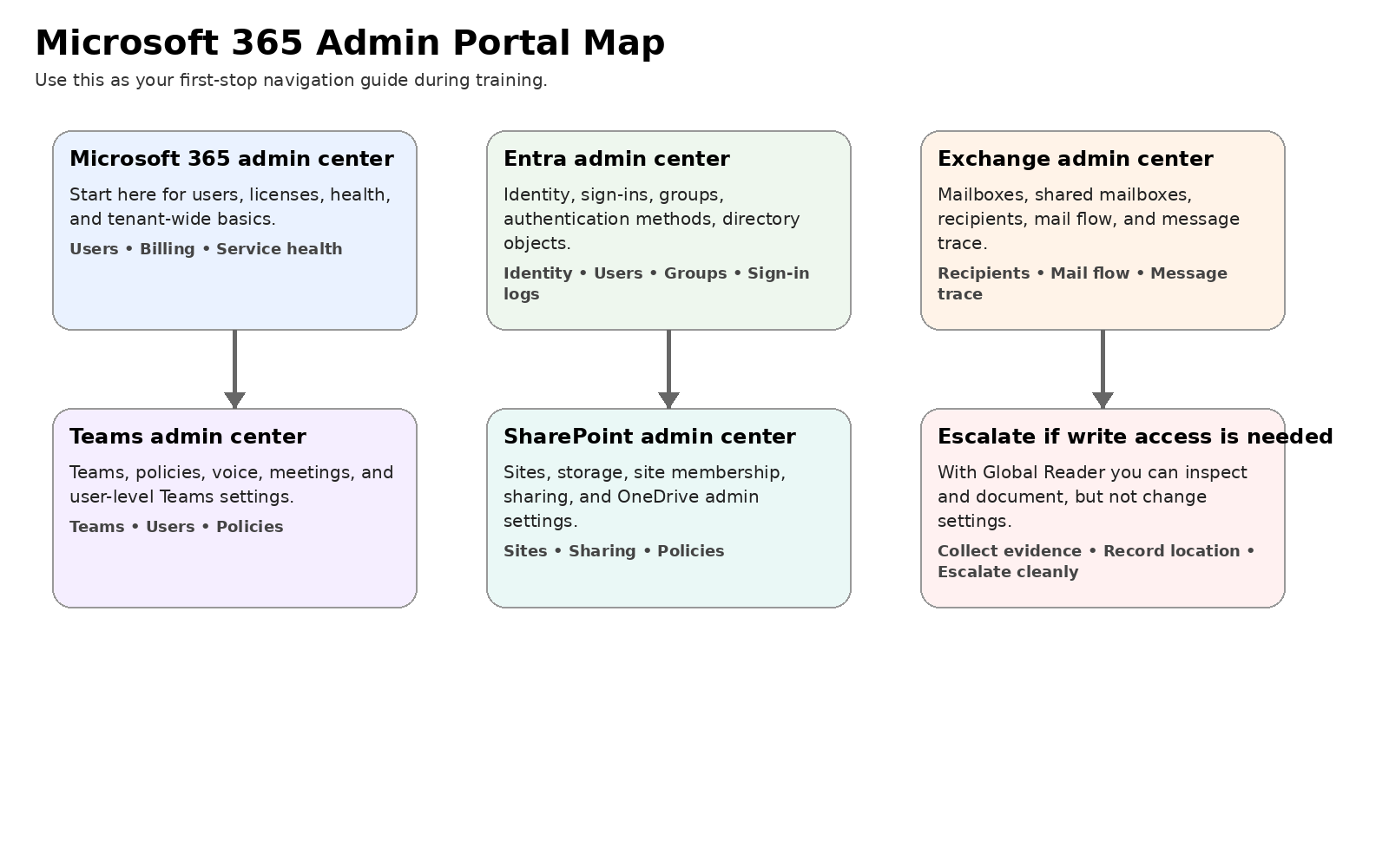
A lot of beginner admin confusion comes from not knowing which portal owns which kind of problem. The fastest way to get better is to stop thinking of Microsoft 365 as one giant site and start thinking of it as a set of connected admin tools.
The big picture
Your main portals
1. Microsoft 365 admin center
This is your general starting point. Use it first for:
- active users
- licenses and subscriptions
- service health
- basic tenant-wide information
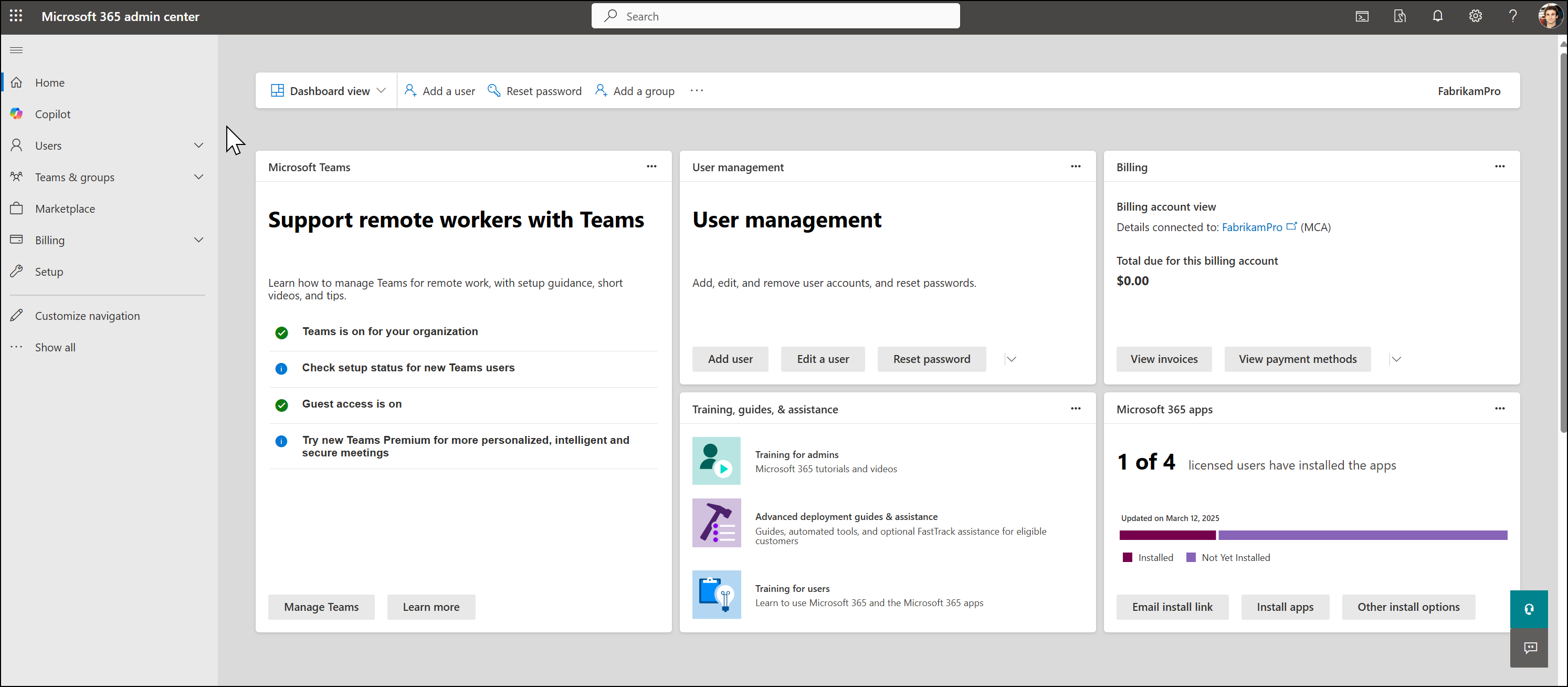
Think of it as: the front door.
Good first questions to answer here:
- Does the user exist?
- Is the user licensed?
- Is there a known Microsoft service issue?
- Do I need to jump into another admin center?
2. Microsoft Entra admin center
Use Entra when the question is mainly about identity:
- user object details
- groups
- authentication-related context
- sign-ins and identity facts
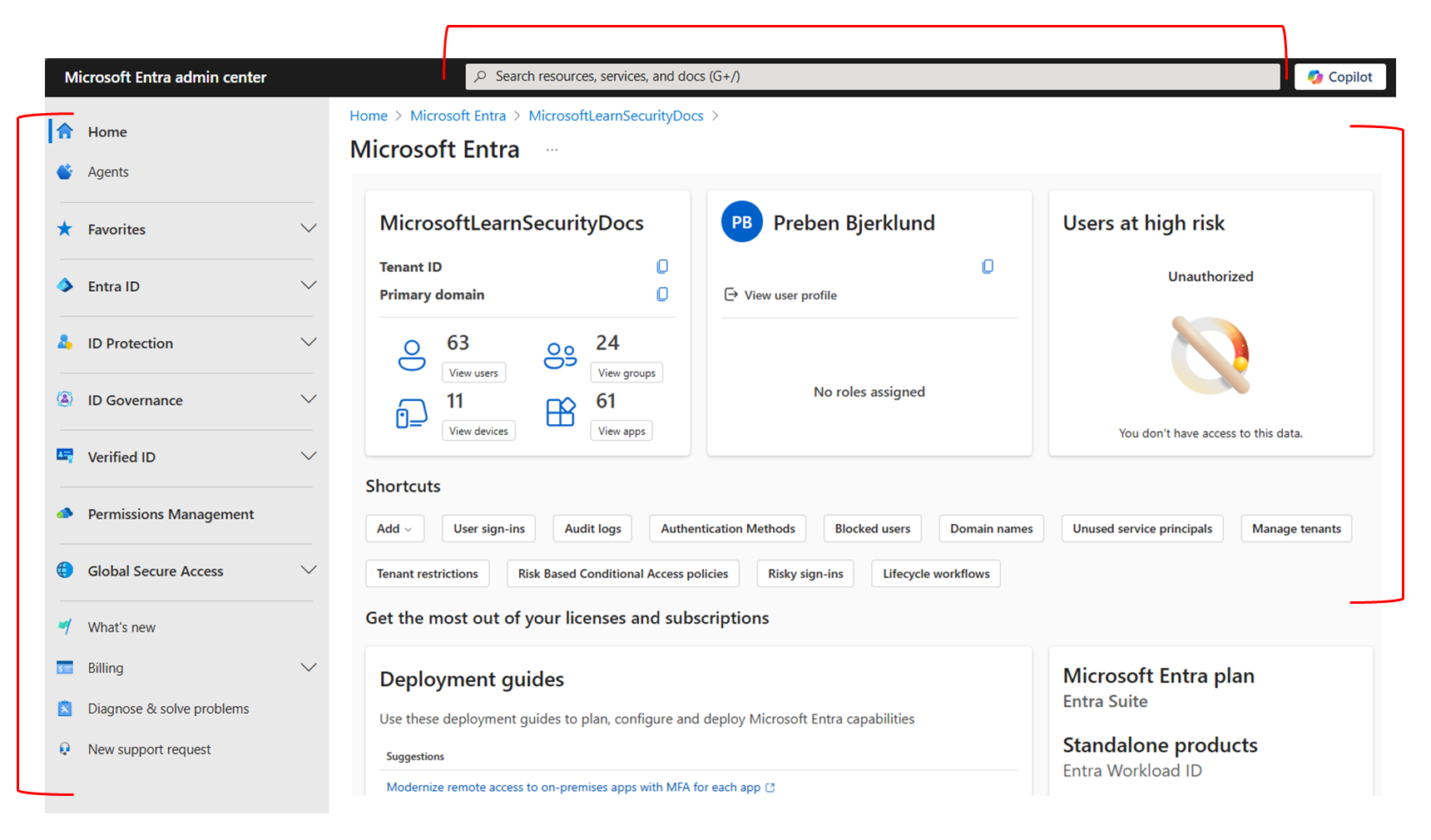
Think of it as: the identity system.
3. Exchange admin center
Use Exchange when the issue is about:
- mailboxes
- shared mailboxes
- recipients
- mail flow
- message trace
Think of it as: the email system.
4. Teams admin center
Use Teams when the issue is about:
- team objects
- user-level Teams settings
- Teams policies
- collaboration behavior inside Teams
5. SharePoint admin center
Use SharePoint when the issue is about:
- sites
- membership
- permissions on a site
- sharing behavior
- OneDrive admin settings
Important: Teams, SharePoint, and OneDrive are connected. Many “Teams file” issues are really SharePoint or OneDrive issues.
How to think with Global Reader
With Global Reader, your job is to:
- locate the right object
- confirm what is currently true
- identify what likely needs to change
- escalate if a change is required
That means your value is accuracy, not just access.
Practical navigation cheat sheet
| Question | Start here | Likely next stop | |---|---|---| | Does this user exist and have a license? | Microsoft 365 admin center | Entra | | Why can’t this user sign in? | Entra | Microsoft 365 admin center | | Is this a mailbox or shared mailbox issue? | Exchange | Microsoft 365 admin center | | Why can’t the user access a Team or Team file? | Teams | SharePoint | | Why does this sharing link not work? | SharePoint | Entra | | Is Microsoft having an outage? | Microsoft 365 admin center | none |
Practical exercise
Log into your tenant and do the following:
- Open the Microsoft 365 admin center.
- Find the navigation path to Users.
- Find the navigation path to Billing / Licenses.
- Find where Service health is located.
- Open the Entra admin center.
- Find Users and Groups.
- Open the Teams admin center and locate Manage teams or Manage users.
- Open the SharePoint admin center and locate Sites > Active sites.
- Open the Exchange admin center and locate Recipients or Mail flow.
Daily assignment
Create a one-page table with these columns:
- portal
- what it is mainly used for
- one thing you can inspect there with Global Reader
- one example of a change that would require escalation
Quiz
- What is usually the best first portal for checking whether a user exists and has a license?
- Which portal is most closely associated with identity objects and sign-in context?
- Which portal would you check for mailbox and mail flow questions?
- Which portal would you check for site membership and external sharing questions?
- With Global Reader, should you describe needed changes as completed work or as escalation recommendations?
End-of-day reflection prompt
Write 5 to 8 sentences answering:
- Which portal felt most intuitive?
- Which portal felt least intuitive?
- What did you expect to find in one portal but found in another?
Source notes
- Microsoft 365 admin center add-user article and dashboard screenshot: https://learn.microsoft.com/en-us/microsoft-365/admin/add-users/add-users?view=o365-worldwide
- Microsoft Entra admin center overview: https://learn.microsoft.com/en-us/entra/fundamentals/entra-admin-center
- Teams admin center manage teams article: https://learn.microsoft.com/en-us/microsoftteams/manage-teams-in-modern-portal
- SharePoint admin center manage sites article: https://learn.microsoft.com/en-us/sharepoint/manage-sites-in-new-admin-center
- Exchange admin center overview: https://learn.microsoft.com/en-us/exchange/exchange-admin-center