Day 5 - SharePoint, OneDrive, and sharing
Read the lesson, work through the screenshots, complete the assignment, and then use the answer key as a self-check.
Learning goals
By the end of Day 5, you should be able to:
- explain the difference between SharePoint and OneDrive in practical terms
- identify where site membership and external sharing settings are reviewed
- understand why some Teams file issues are really SharePoint issues
- create a clean final investigation summary for common collaboration problems
Practical mental model
SharePoint
Think: team, site, shared content, department or project collaboration.
OneDrive
Think: an individual user’s work files and personal business storage space.
Important connection
In Microsoft 365, file collaboration can cross products. A file problem might be reported through Teams, but stored in SharePoint or OneDrive.
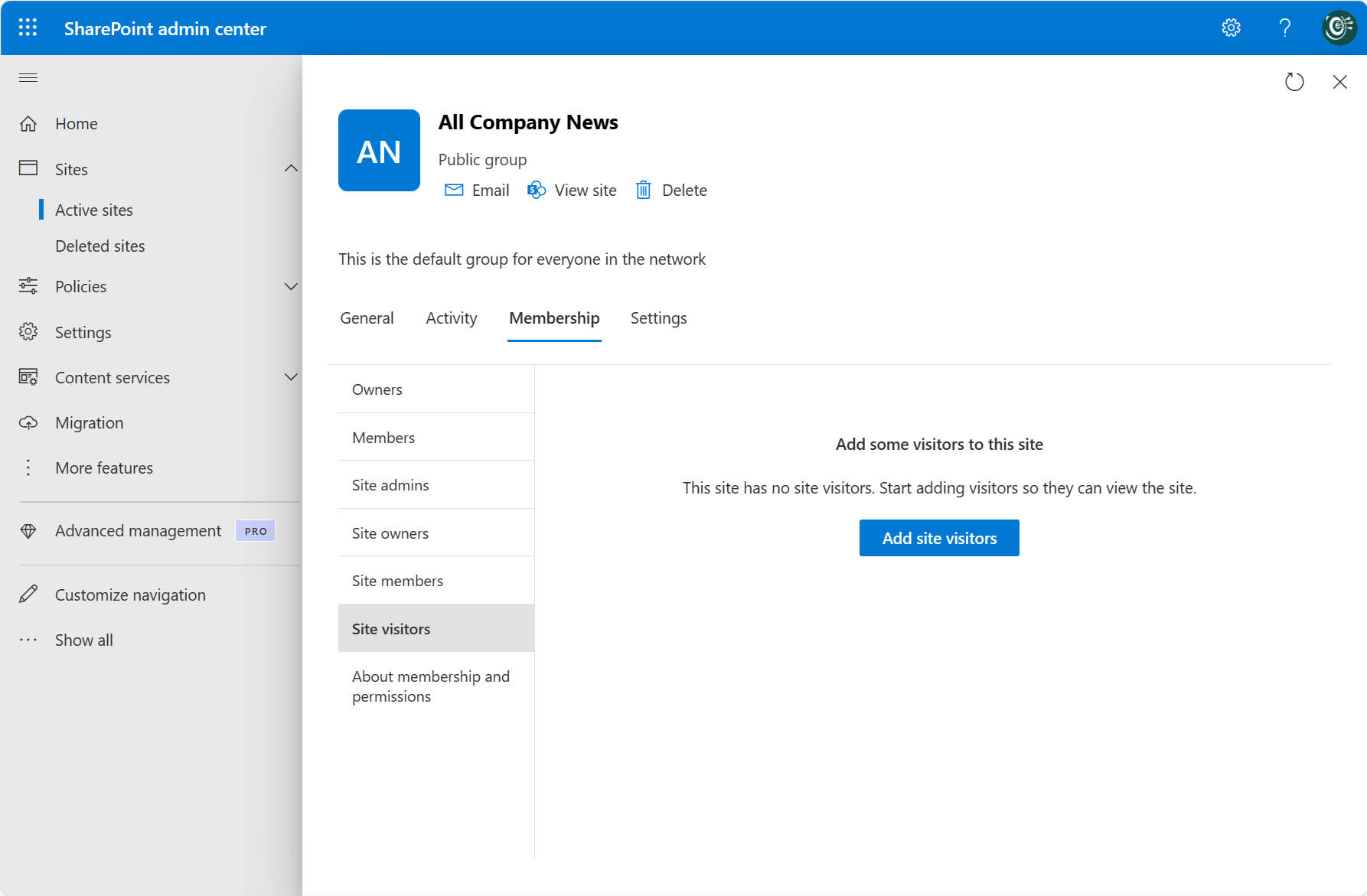
Site membership view
When the question is “who has access to this site?” or “what kind of members does this site have?”, the SharePoint admin center becomes very important.
External sharing basics
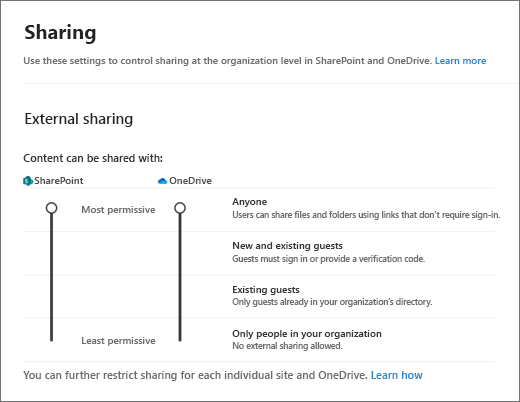
A lot of real-world support questions boil down to sharing. Examples:
- “The external user can’t open the link.”
- “The client says the file is blocked.”
- “This site should not be open externally.”
At a high level, Microsoft documents organization-level sharing settings in the SharePoint admin center.
What to look for in a sharing-related investigation
- Is the problem about a site, a file, or a user’s OneDrive?
- Is the affected person internal or external?
- Is the issue about membership, link behavior, or policy?
- Is the problem local to one site or likely broader?
Common beginner mistake
Treating every sharing issue as a simple permission problem.
Sometimes the real cause is:
- site-level sharing settings
- organization-level sharing settings
- guest restrictions
- wrong link type
- the user opening the wrong account
Read-only workflow for a sharing ticket
- Clarify whether the content is in SharePoint, OneDrive, or Teams.
- Identify whether the affected person is internal or external.
- Inspect the relevant site or admin area.
- Note whether the issue appears site-specific or tenant-wide.
- Escalate if a policy or permission change is required.
Final practical exercise
Write a final triage note for this scenario:
An external client says a Microsoft 365 file link opens for some people but not for them. The internal employee says the file was shared from a Team.
Your note should include:
- what portal(s) you would inspect
- what clarifying questions you would ask
- the three most likely categories of cause
- what evidence you would collect before escalation
Quiz
- In practical terms, what is the biggest difference between SharePoint and OneDrive?
- Which admin center is most important for site membership review?
- Which admin center is most important for organization-level external sharing settings?
- Why can a Teams file issue actually be a SharePoint issue?
- If an external user cannot open a link, should you assume it is only a user mistake?
Week 1 wrap-up challenge
For each of these tickets, write the first portal you would check and the second portal you might need:
- User cannot sign in to multiple Microsoft 365 services.
- User does not receive email.
- User says their Team is missing.
- External client cannot access a file link.
- New employee says they cannot use Teams.
Source notes
- Manage sites in the SharePoint admin center: https://learn.microsoft.com/en-us/sharepoint/manage-sites-in-new-admin-center
- Manage sharing settings for SharePoint and OneDrive: https://learn.microsoft.com/en-us/sharepoint/turn-external-sharing-on-or-off