Day 4 - Exchange and Teams basics
Read the lesson, work through the screenshots, complete the assignment, and then use the answer key as a self-check.
Learning goals
By the end of Day 4, you should be able to:
- decide when an issue belongs in Exchange versus Teams
- understand the basic purpose of mailboxes, shared mailboxes, Teams, and team membership
- identify where message trace and Teams management views live
- perform read-only triage before escalation
Part 1 - Exchange basics
What Exchange is for
Exchange is where you think about:
- user mailboxes
- shared mailboxes
- recipients
- distribution behavior
- mail flow
- message trace
Practical examples of Exchange-type issues
- “The user is not receiving email.”
- “This shared mailbox is missing.”
- “We need to know whether the message was delivered.”
- “Is this address a mailbox, group, or something else?”
Message trace matters
Message trace is one of the most useful concepts for basic email triage because it helps determine whether the message was delivered, rejected, deferred, or otherwise processed.
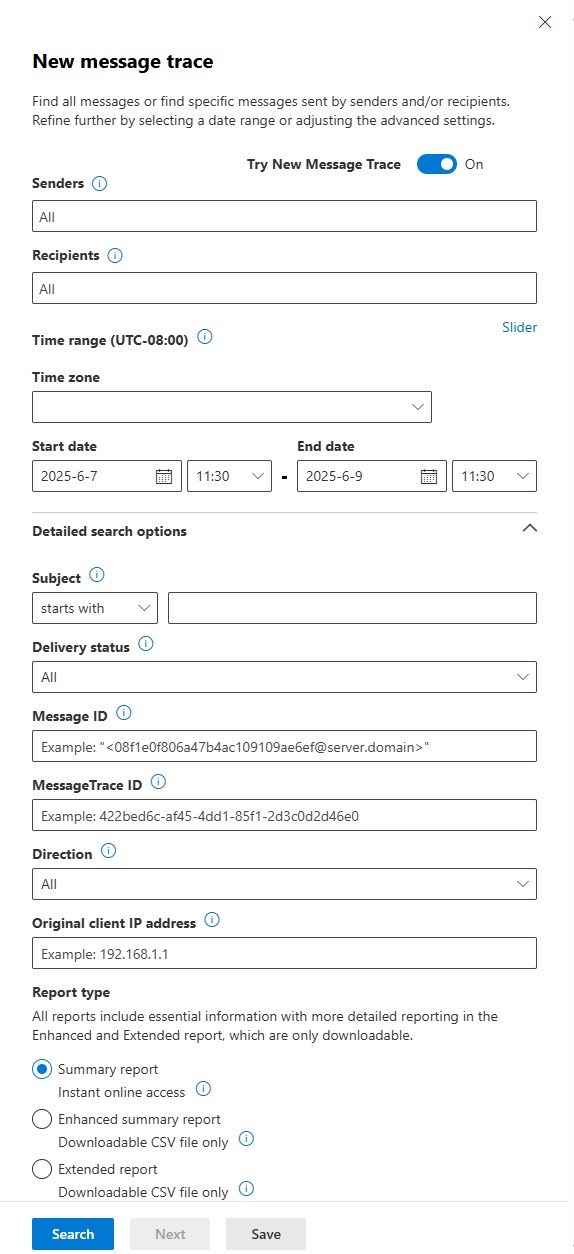
Even if you cannot run or use every feature with your current role, you should know that this is where email-path investigation happens.
Part 2 - Teams basics
What Teams is for
Teams is where you think about:
- team objects
- user collaboration settings
- some policy assignments
- team membership and ownership questions
Practical examples of Teams-type issues
- “The user can’t find a Team.”
- “The Team exists, but the person cannot access it.”
- “We need to know whether the Team is present and who owns it.”
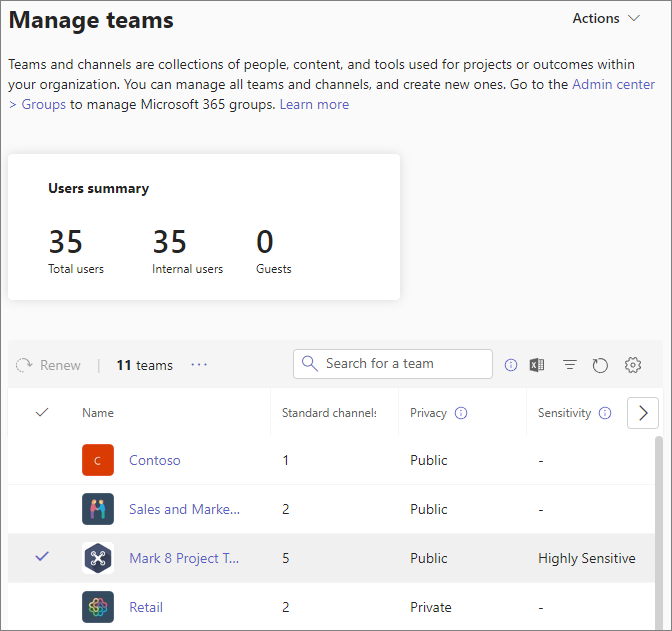
Exchange versus Teams: how to tell the difference
Usually Exchange
- email delivery
- shared mailbox access
- mailbox existence
- email routing
Usually Teams
- team visibility
- membership in a Team
- Teams-specific collaboration behavior
- policy-driven Teams settings
Sometimes both or a connected service
A user may say “Teams file issue,” but the real cause may be SharePoint permissions. A user may say “I can’t collaborate,” but the real cause may be a missing license.
Practical triage flow
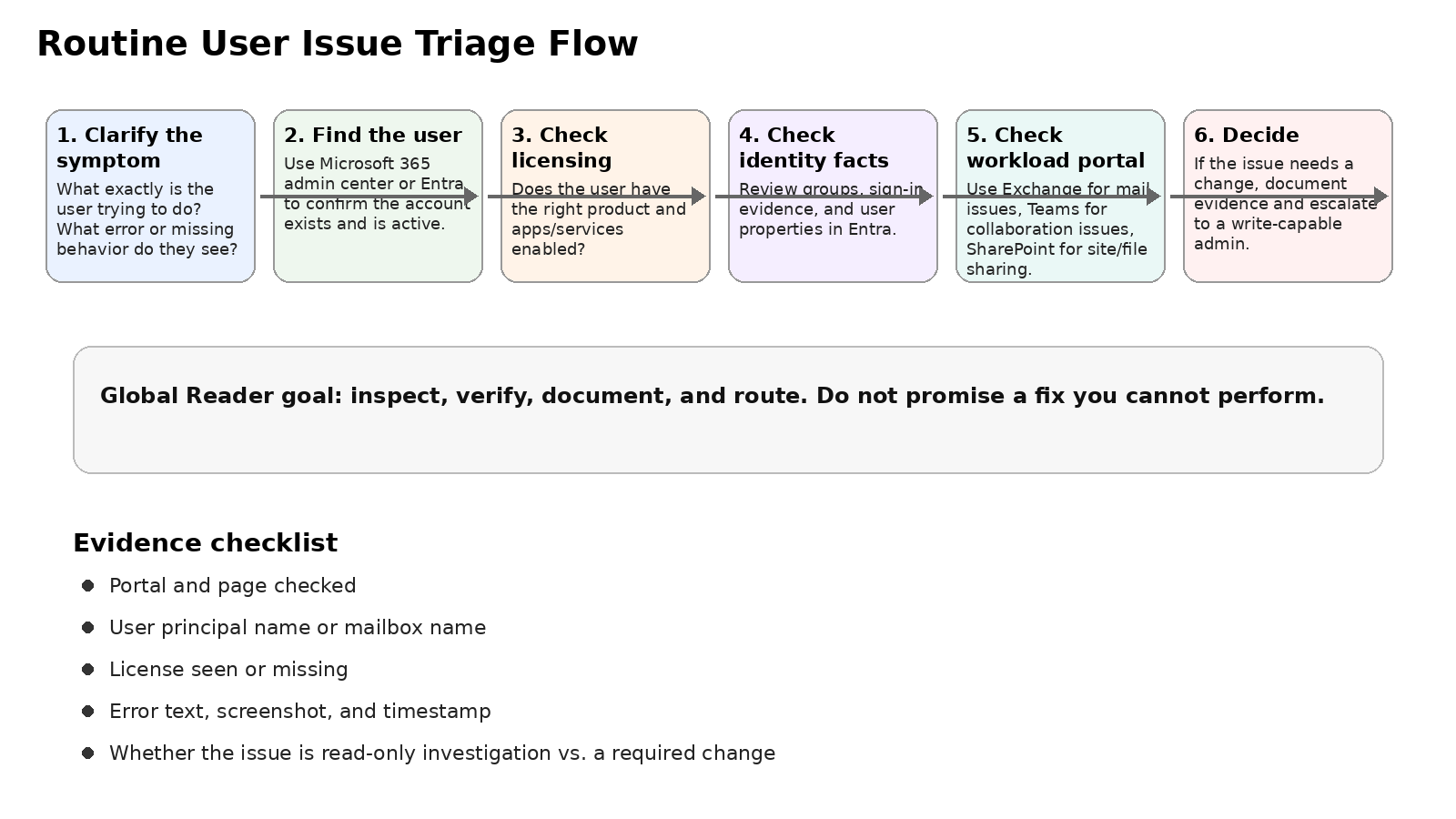
Read-only investigation examples
Scenario A: User says they are not getting email
Read-only checks:
- confirm the user exists
- confirm the user appears licensed for Exchange-capable services
- confirm the issue belongs in Exchange, not just Outlook on one device
- note that message trace is the next likely check
- escalate if trace or configuration change is needed
Scenario B: User says they cannot find a Team
Read-only checks:
- confirm the user exists
- confirm the user appears licensed for Teams
- inspect Teams admin center if accessible in your role scope
- ask whether the issue is “cannot see the Team,” “cannot open the Team,” or “cannot access files”
- note whether the next stop is Teams or SharePoint
Daily assignment
Write two short investigation notes:
- A note for a user who reports missing email.
- A note for a user who reports missing Teams access.
Each note should include:
- likely portal
- what you would verify first
- what evidence you would capture
- what would trigger escalation
Quiz
- Which portal is best for mailbox and mail flow questions?
- What is a shared mailbox issue an example of: Exchange or Teams?
- Which portal is best for Teams object and policy-related questions?
- If a user says they cannot open files inside a Team, which other portal may also matter?
- What is the point of message trace at a high level?
End-of-day reflection prompt
Write one paragraph comparing how you would triage:
- a mail issue
- a Teams access issue
- a Teams file issue
Source notes
- Exchange admin center in Exchange Online: https://learn.microsoft.com/en-us/exchange/exchange-admin-center
- New message trace in Exchange Online: https://learn.microsoft.com/en-us/exchange/monitoring/trace-an-email-message/new-message-trace
- Manage teams in the Teams admin center: https://learn.microsoft.com/en-us/microsoftteams/manage-teams-in-modern-portal
- Assign policies to users and groups in Teams: https://learn.microsoft.com/en-us/microsoftteams/assign-policies-users-and-groups